Let’s Look Back

Hi everyone!

So today, I’m gonna have a look back at my original project concept, and see what’s happened with it. To be honest, I’m expecting to see some changes, but let’s see:

Project Concept:

Based on my Pre-Production research, the aim of the project is to create a Japanese-style Role-playing Game inspired by games such as Final Fantasy, Dragon Quest, and Fire Emblem. I am intending to use a 2D 16-Bit Pixel Art style, reminiscent of games released during the 1990’s and early 2000’s. Typically, JRPG’s have complex plots of epic proportions, so I intend to create a demo of my game, which will consist of the beginning of the story. I am also planning on using a medieval-inspired fantasy setting for this project, which is a standard trope of the RPG genre as a whole. Although there are common conventions in the JRPG genre, I will also be adding some additional features, such as a custom battle system.

  • This first section of the concept seems to be in order. I mean, I’m making a JRPG. I’ve added a slightly customised battle system, so that part’s there. And I am using a 16-bit pixel style. So good so far. Oh, and I’ve looked at several Final Fantasy games, which was my primary source of inspiration for this. So again, done.

I’ll be looking at historical sources on medieval history, as well as fantasy literature and other RPG’s to provide context for this project. There will also be visits to appropriate medieval sites such as castles, to provide visual and contextual references. I will also need to perform an audience profile, to identify my target demographic. For all of my research, I will be using a wide variety of secondary research media, such as books, podcasts, videos, and games. I will also be using various primary research methodologies and techniques, such as surveys, focus groups, and interviews.

  • Ok, this part has suffered. I haven’t been able to visit any medieval sites at all. The audience profile hasn’t been done either. I have been looking at existing games though. So all in all, ONE THIRD of this section’s been done. That is not good at all. Also, when it comes to research techniques, I’ve only really been doing secondary research. I tried some primary, but it didn’t come to anything. To be honest with you, I believe that no-one really cares about my project, so trying to get any primary research sources is going to be a strain.

The three phases of this project are Pre-Production, Production, and Post-Production. In the Pre-Production phase, I will be compiling my research and using that to create a variety of material on how I’m going to create my game, and what I’m going to include or exclude from the project. During the Production phase of the project, I will actually be creating and modifying assets, as well as developing the playable section of the game. Once I have completed the Production stage, I can move onto Post-Production, during which I’ll be finalising the demo and creating the exported version ready to be presented.

  • This last part seems to be going OK, as it’s the production phase. I’m currently on that now, so hopefully it should abide by the proposal. I’ve also demonstrated some of the assets that I’m making, so that’s in there too.

Overall, I’ve stuck to what was really quite a vague concept. I think my production would have worked so much better if my concept was more definitive. So far, I’ve only got a small area of my game done, and then not even to completion at this point. Next time I do anything like this, I’m gonna create a much more rigid definition of what I’m making.

So there we have it! Looking back, I wish I could do this project again, as I could do it so much better now. That’s the beauty of hindsight. But I’m gonna see this through to the end now, and next time I shouldn’t make so many basic mistakes in my project management. Live and Learn I suppose.

I’ll be back soon with some more Dev Logs.

Dev Log #7

Hi everyone!

Finally fixed the Monster Spawn system!!! Took me a while though. What happened was I used the wrong type of command; I was supposed to use a Script Call, rather than a Plugin Command (Whoops!!!). I’d also gotten two variables mixed up; one for the amount of monster events, and the other for how many monsters you’d be able to fight. With those two mixed up, the game couldn’t actually set up the battle screen, even once I’d sorted the spawning system.

So, yeah, that’s taken all evening to figure out. Hopefully tomorrow I can finish the intro cutscenes and maybe even add some shops! So until later!

Dev Log #6

Hi everyone!

So, I decided to create my forest map, which I’m using as the intro to the first major area. I used one of RMMV’s sample maps to start with, and then using my region mapping technique (detailed here: https://sldesignfmp.game.blog/2019/03/29/change-of-approach/), I modified it extensively. I’m not too happy with relying on sample materials, but I’m a bit pressed for time, and the layout works quite nicely. Here’s the sample:

RPG Maker MV – Forest Sample Map

And here’s what I’ve done with it:

Forest Sample – Retro-styled

Due to the fact that my sprites are twice the size of the chibi’d default sprites, I’ve had to increase the size of some of the terrain features to compensate. I’ve also added some additional cliffs, with layers of foliage to create a level of depth to an otherwise bland layout. I tried to make sure that the modifications fit with my custom village map, as I’m trying to avoid the need for a “world map”. In some JRPG’s, there’s an overworld map, with settlements and dungeons highlighted. But I’m not doing that. I much prefer the way that Pokémon and Legend of Zelda do their mapping, with a contiguous map.

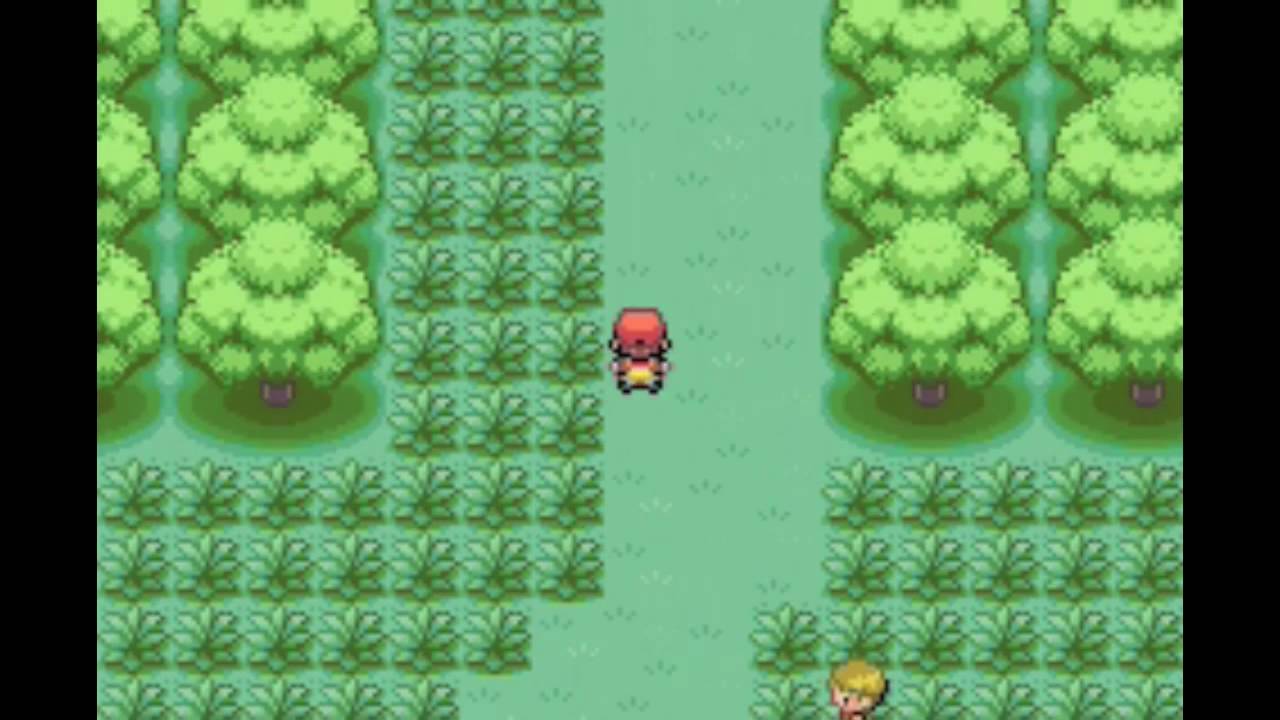
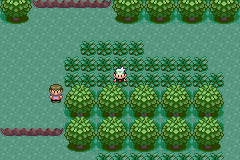
Now, why have I chosen a forest as the first “dungeon” area? Well, again, it leads back to Pokémon (specifically; FireRed/LeafGreen and Ruby/Sapphire/Emerald). In many of the earlier games, the first proper area you have to traverse is a dense woodland (such as Viridian Forest or Petalburg Woods). These areas are normally replete with low-level bug, grass, and poison type Pokémon that aren’t too hard to catch or defeat. Now, I’m going to use the same principle, as it works. Here are some images of the maps I’m talking about:

It’s nice and gentle, easing the player into the game mechanics without being overly tedious. It also gives them a chance to level in a relatively safe environment. Obviously, there’s going to come a point where they find the area too easy, but that’s when they’ll want to move onto the next bit of the game. (Pacing is important)

One issue that I’ve come across; I’ve tried to setup a random spawn system to generate random encounters. Only issue is that it doens’t work. I’ve set up a private variable to generate a random number between 3 and 6. I chose these numbers due to the size of the map; too few and it won’t be interesting, too many and the map gets too cluttered and impassable. I’m using a combination of Yanfly’s Plugins to make this system work;

Yanfly Engine Plugins – Event Spawner
Yanfly Engine Plugins – Self Switches and Variables

By default, RMMV can’t do instanced or private variables, which is what the Self Switches and Variables is designed to add. The Event Spawner allows me to spawn various template events onto other maps. It can do this via direct designation, direct designation based on variables, or based on Region ID’s. I’m using Region ID’s for this, as it’s nice and simple. Also, because I want monsters to spawn in long grass, like they do in the Pokémon series.

Only, it doesn’t want to work, and I can’t figure out why. I’m going to have to look at how I’m doing it, as I may have missed something.

Anyway, I’ll get on with that, and I’ll be back soon!

Bibliography:

YouTube. (2018). YEP.170 – Event Spawner – RPG Maker MV. [online] Available at: https://www.youtube.com/watch?v=ER1ZvfAjUXc [Accessed 16 May 2019].

YouTube. (2018). YEP.113 – Self Switches & Variables – RPG Maker MV. [online] Available at: https://www.youtube.com/watch?v=BwcI5OimnHc [Accessed 16 May 2019].

Dev Log #5

Hi everyone!

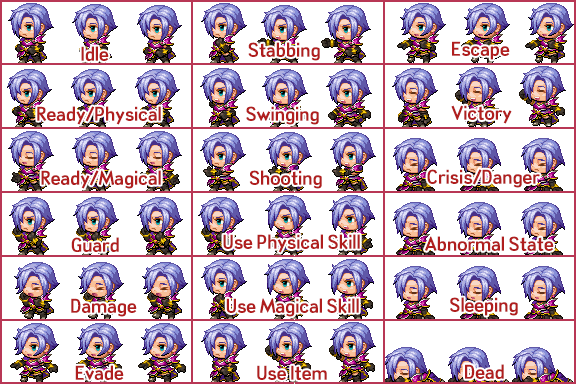
So after a few comments yesterday about the sideview battler sprites not displaying the correct weapons, I did a bit of digging. On the official RPG Maker forums, Archeia (one of the main engine developers) posted about the default asset standards and guidelines. Here’s how the sideview batter spritesheet is normally configured:

Asset Standards Template by Archeia

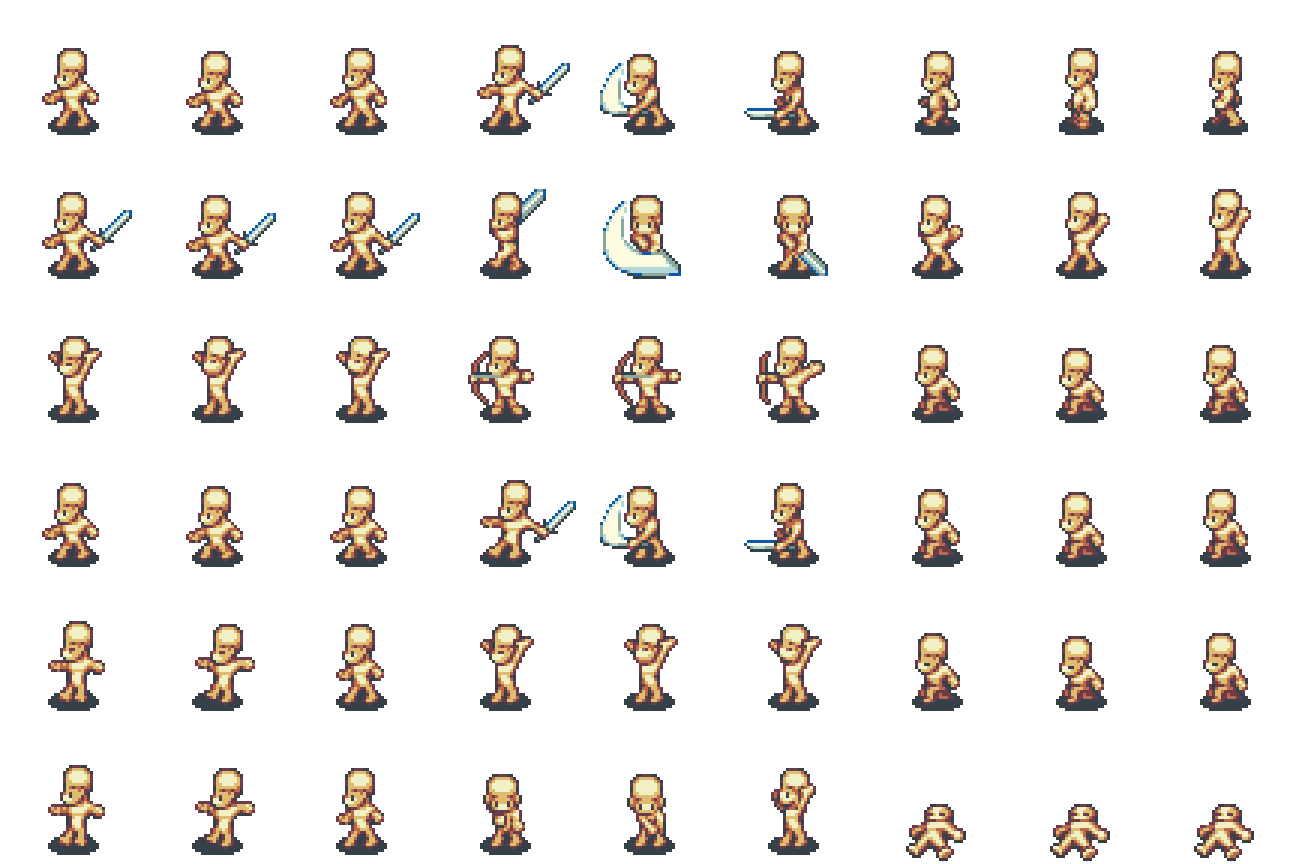
Each section is a three-frame animation, with a total of EIGHTEEN different animations. Now, the engine is looking for specific motions when an ability is used, such as taking damage or spellcasting. Now, here’s the template for the Time Fantasy assets that I’m using:

Time Fantasy Sideview Battler Template – Sword

Now, you may notice that the weapon graphic is actually part of the sideview battler sheet. This isn’t normally how RMMV handles its sideview animations. I think that this is the source of my problems. Instead of tyring to rebuild the graphics to conform (which will take too much time), I’m going to have to look into Plugins that allow me to circumvent this issue.

I may have a promising lead in some of Yanfly’s Plugins; namely the Action Sequence Packs. These plugins require both the Yanfly Core Engine and the Yanfly Battle Engine Core in order to function, but they allow me to adjust the way the sideview battle system works. Only problem I’m having is that the plugins are quite complex, and I need to decipher what effects that they can manipulate. Hopefully, I’ll be able to set something up where I can swap out the battler graphics depending on what weapon the character is armed with, which would immediately fix the issue. I’d just need a ton of sideview battlers though!

So I know now what the issue is, and if all goes well, I can fix it. Anyhow, I’ll see you later with some more content!

Bibliography:

RPG Maker Forums. (2015). RPG Maker MV Templates and Guideline. [online] Available at: https://forums.rpgmakerweb.com/index.php?threads/rpg-maker-mv-templates-and-guideline.46839/ [Accessed 16 May 2019].

Dev Log #4

Hi everyone!

So I got a couple of my friends to test what I currently have, and they noted a few issues:

  • Jeanné’s Sideview battler sprite doesn’t display correctly
  • Magick spells don’t actually do any damage
  • Battlers don’t walk up to enemies prior to attacking
  • Little to no tutorial material

Well, so far I’ve managed to address:

  • Jeanne’s Sideview battler sprite displays correctly now. I had to completely rebuild the actor profile in order to fix this.
  • I’ve added a base spell power value to Magick spells. This aleviates some of the balancing issues.

I’m gonna fix the other two issues soon. Hopefully, its shouldn’t take too long!

Dev Log #3

Hi everyone!

Today, I’m going to go through how to go through how I create and configue tilesets to use in RPG Maker MV. This may be a bit of a long one, but stick with it; it’s certainly interesting.

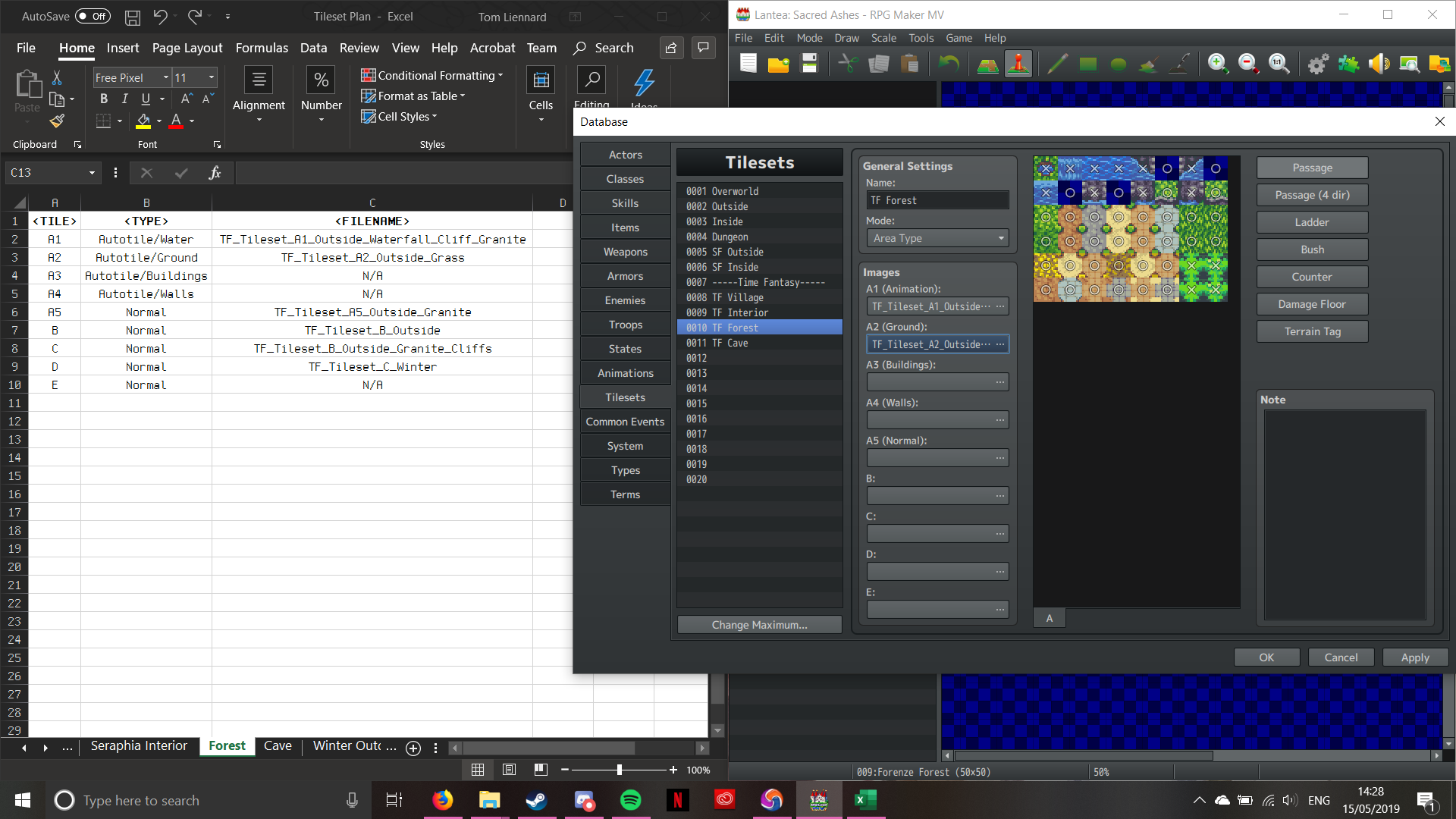
Under the Tilesets tab in the database (which if anyone is wondering, is the Icon with the two cogs on it), select a slot for the tileset to go. If there aren’t any free slots, make some more by clicking on the “Change Maximum” button, and entering how many slots you’d like altogether. I’ve already gone ahead and named the tileset I’ll be doing, to save time. I’ll also be referencing my Tileset Plan that I posted in Dev Log #1, so if you don’t know how that works, please check out that post before continuing.

Starting with a blank tileset:

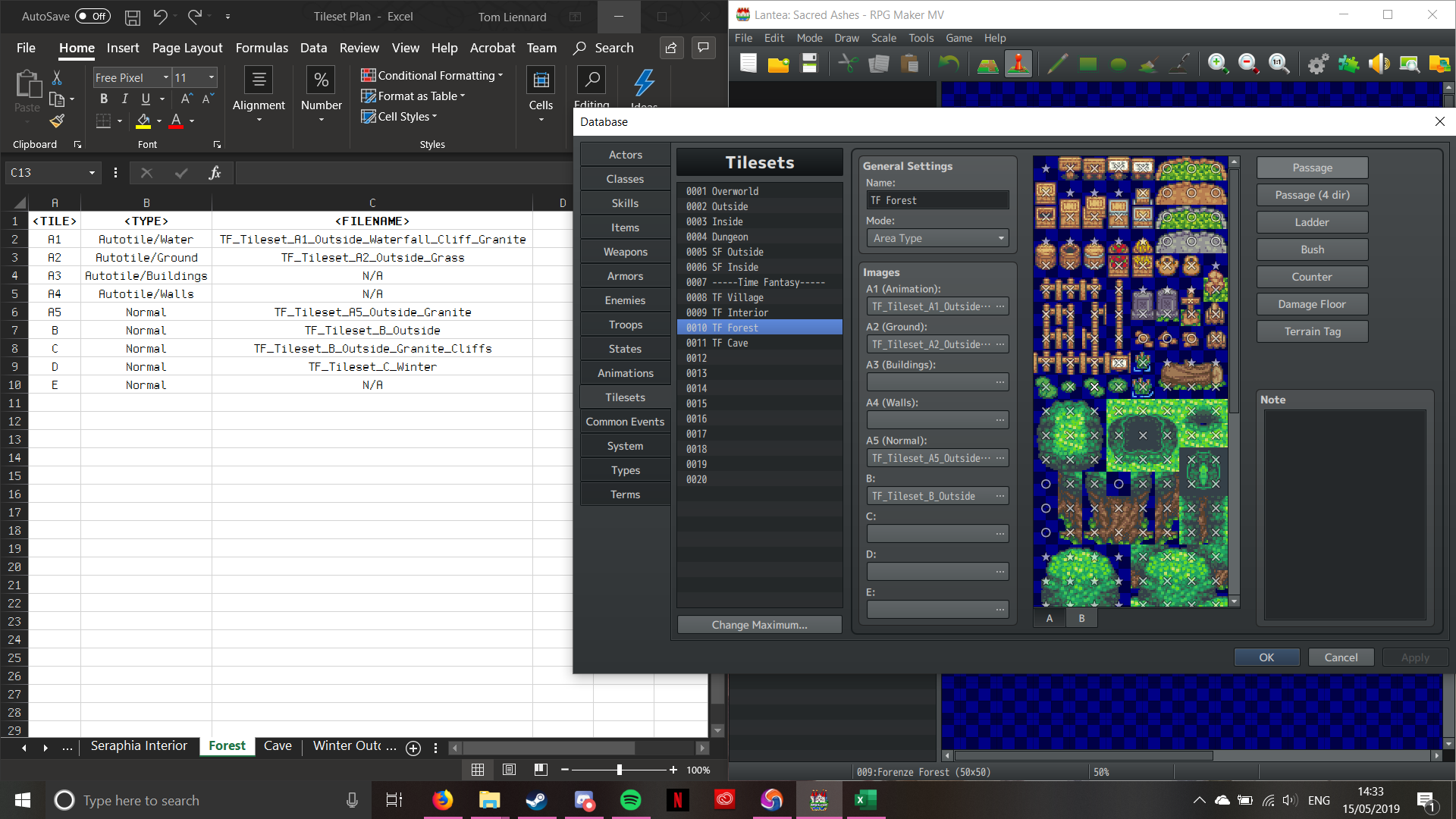
RPG Maker MV’s Interface – Tilesets

I’ve already opened the Tileset Plan, so I can see what’s supposed to go where. Now, in this interface, there are various buttons. General Settings is fairly straigtforward, with the name and mode sections. There are only two modes; Area and World. As this is going to be a Dungeon-style area, we want to leave it default (as it always defaults to Area Mode). Images is where we’re going to be selecting the various tileset components (as mentioned in Dev Log #2), and making them a part of the tileset. The buttons on the right are a bit more interesting; each one selects a specific mode, such as general passability, specific passability, the ability to talk to NPC’s through the object, or whether the floor causes the player HP damage.

Anyway, enough about the interface, let’s start importing assets!

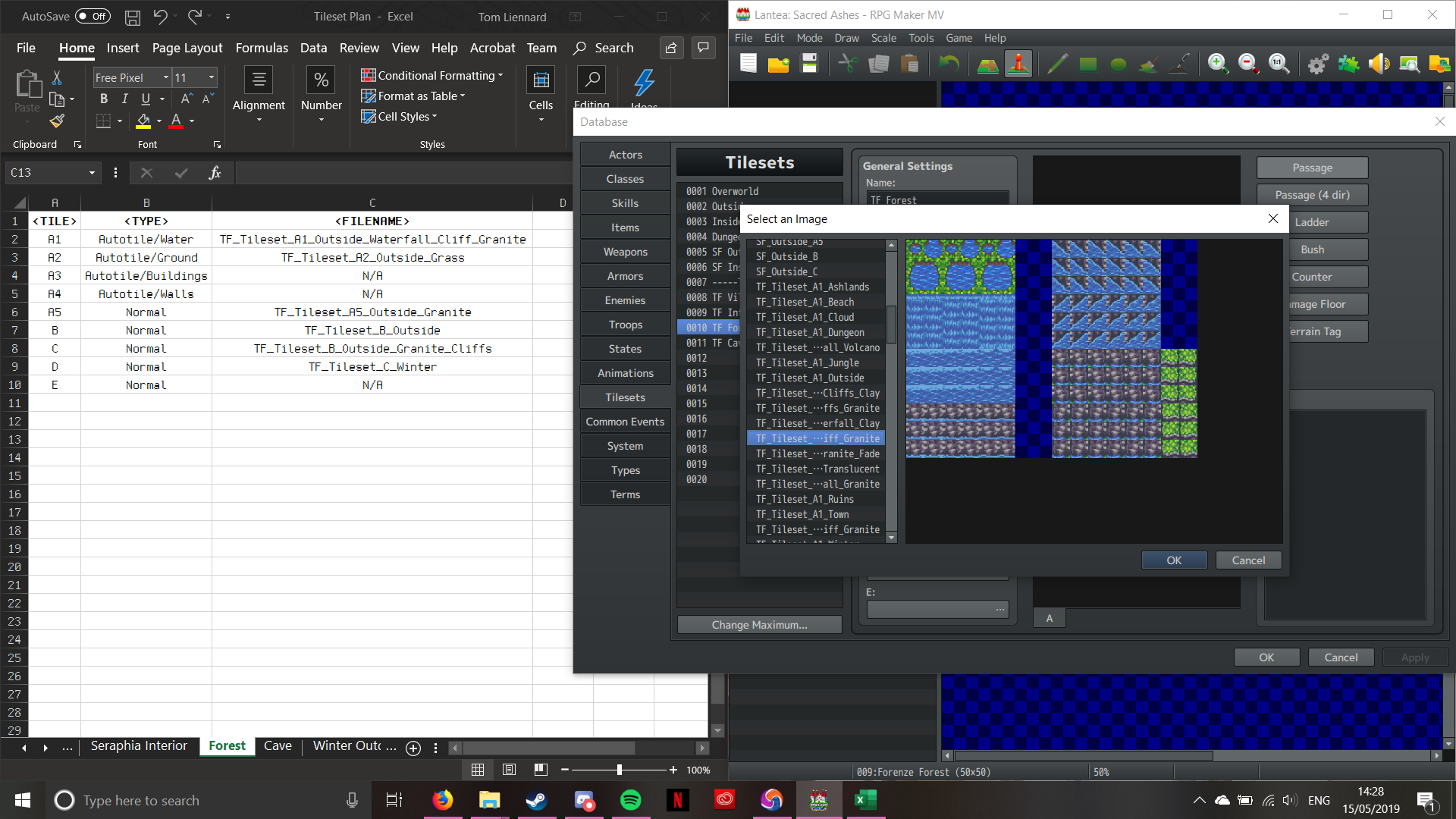
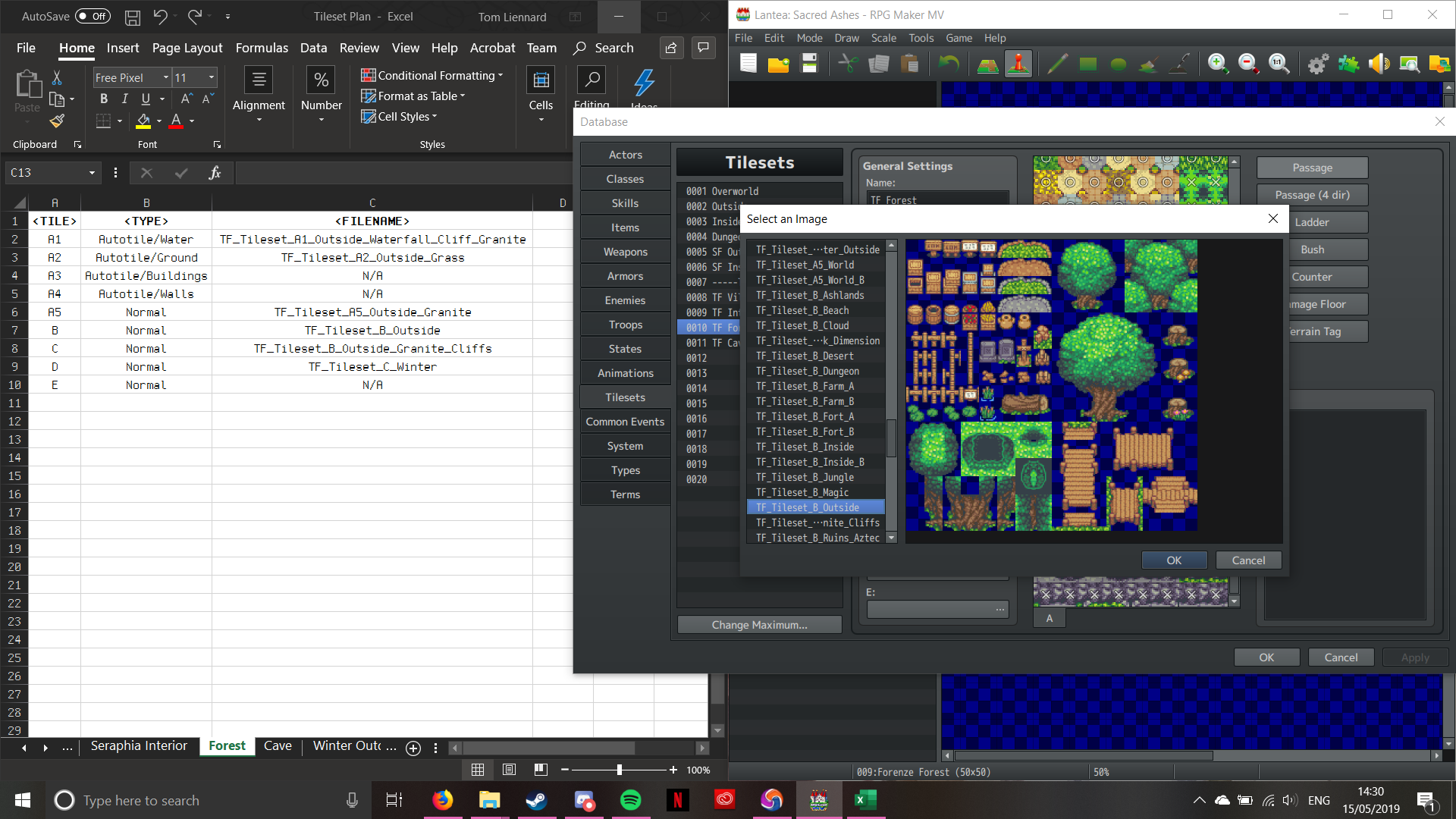
Firstly, we’re going to start with the “A1″ section of the tileset; animated water. By clicking on the box marked “A1 (Animation)”, it brings up the following window:

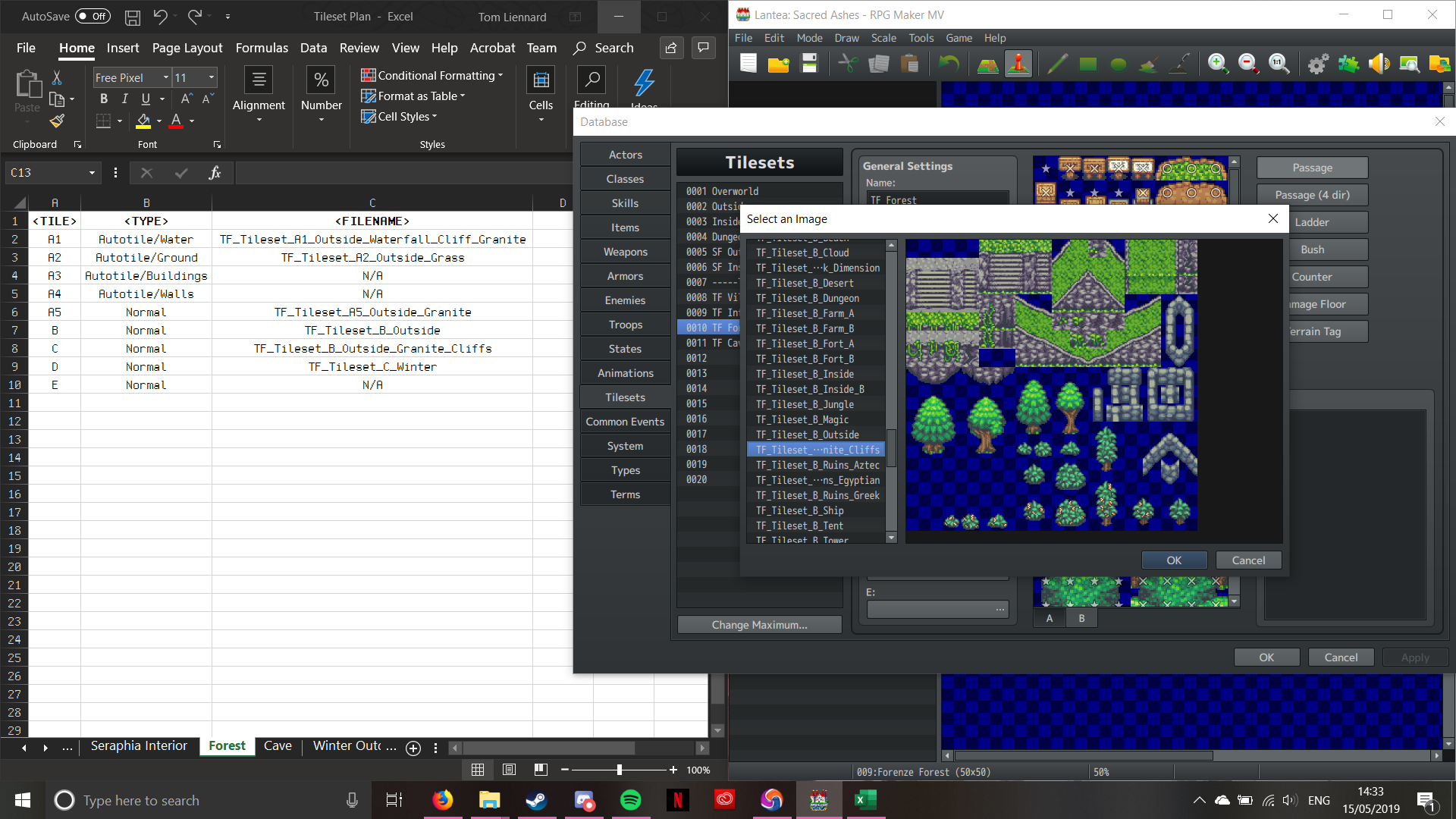
RPG Maker MV’s Interface – Selecting Tileset Images

Pictured above is the A1 Tileset that I’m going to use. If you look, it’s the same one as detailed in the plan. There’s a reason I chose this one; it has waterfalls. I like being able to add some depth to my maps, otherwise they can look a little too flat. Also, if you think about how geography works, water ALWAYS flows downhill. Once I click OK, the tileset will appear in the main interface between “General Settings” and “Passage”.

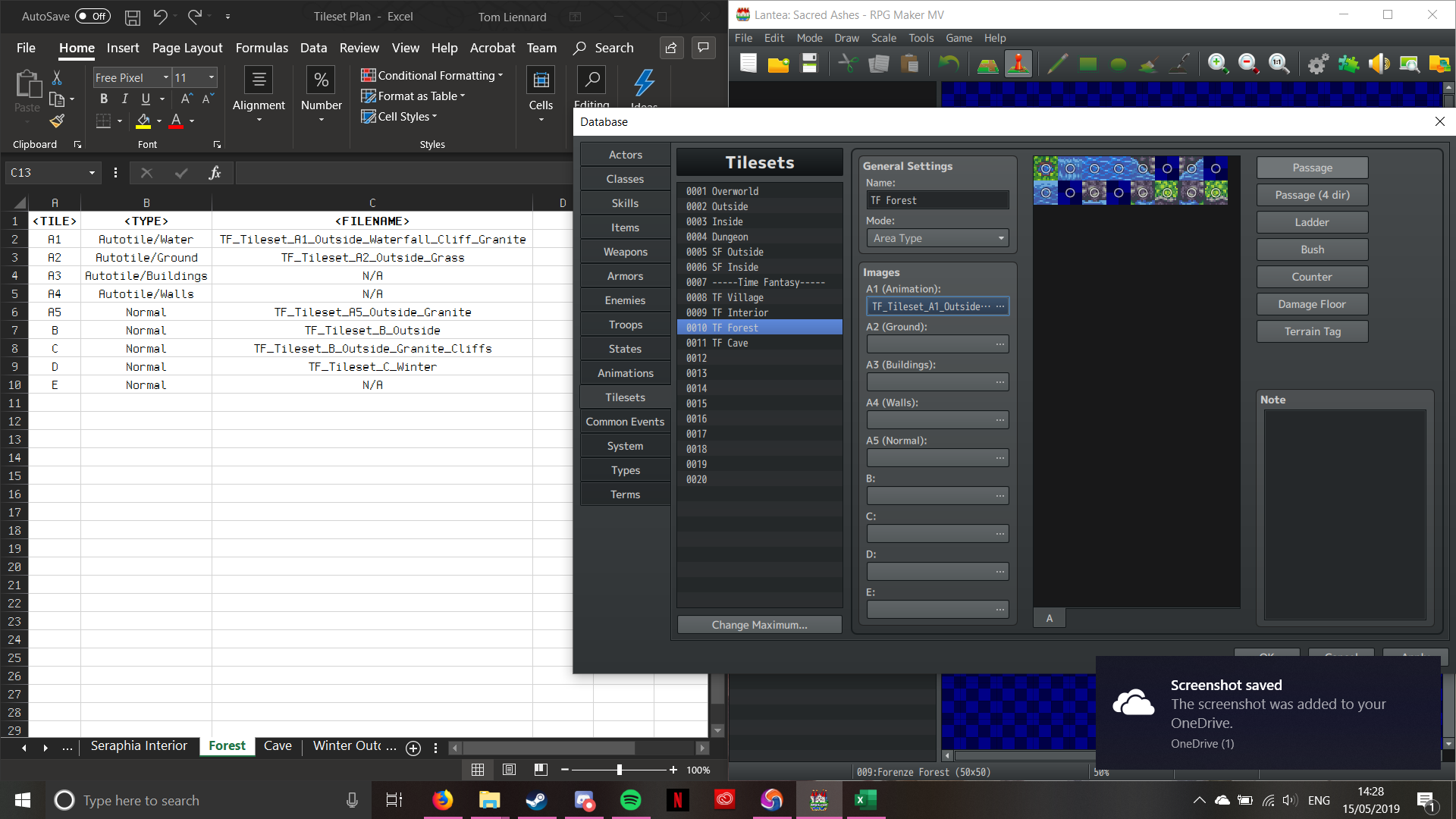
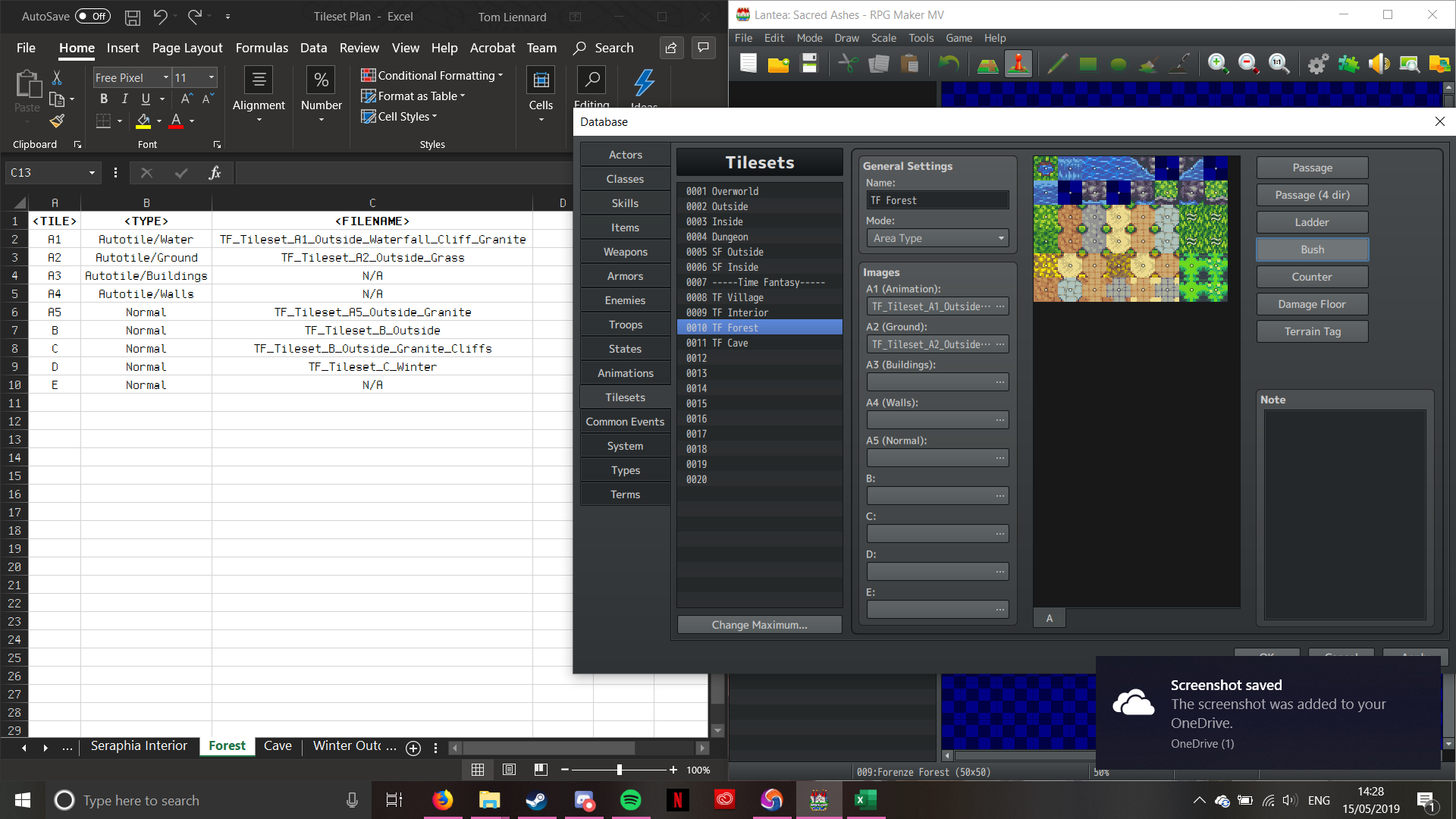
Sorry about the “Screenshot saved” notification; my laptop hates it when I take screenshots!

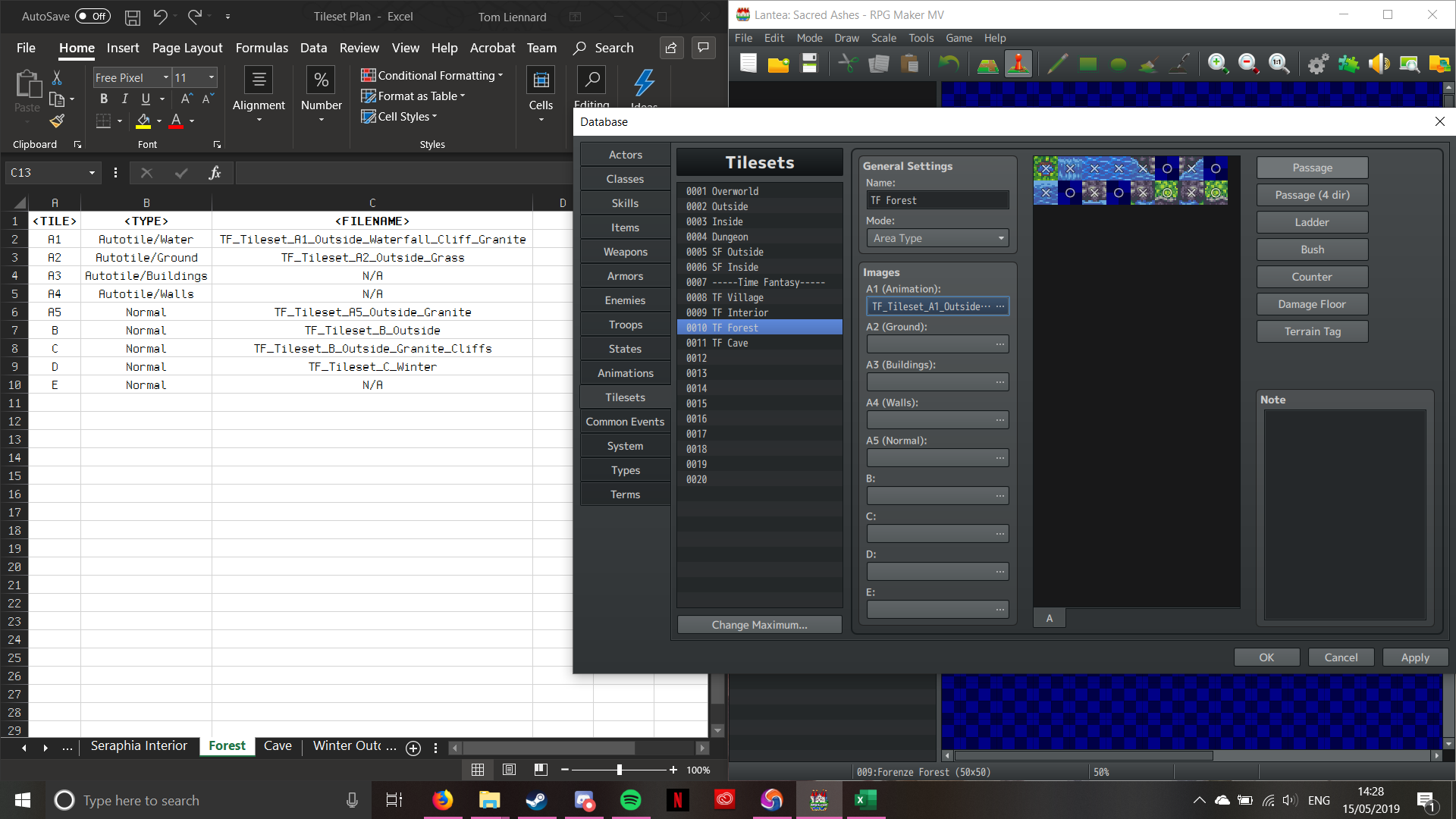
Now that the image has been imported, it’s time to set passability. “A” tileset pieces can only be set to one of two passability settings; Yes (Indicated by a Circle), and No (indicated by a Cross). Here’s how the editor looks once I input the passability:

Passability has been set for the A1 Tile

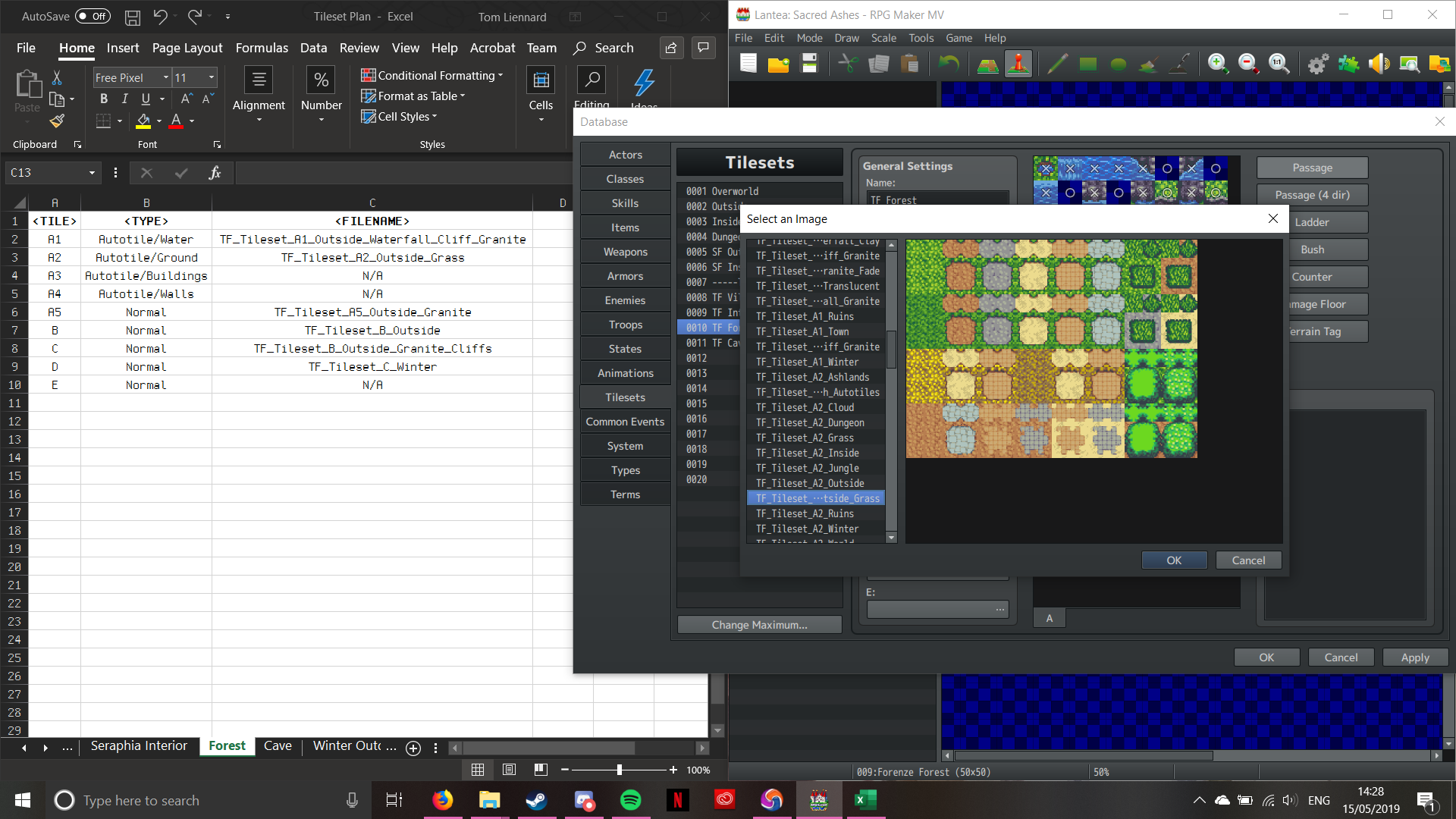
Now the A1 Tiles all work in the same way at this point, so I’m gonna fast-forward through the process; don’t worry, I’ll stop if anything interesting happens!

Now this next bit’s a little different, as we’re not setting passability for open ground (leaving them as Circles). The only ones with passability settings are the hedgerows in the bottome right. The grass (upper left of the A2 section) are what’s interesting. We need to “Bush” tag them. Bush-tagging tells the engine to overlay the ground slightly over the feet of the sprites, to create the illusion of walking through tall foliage (Pokémon does this for it’s long grass). To do this, we select the “Bush” option, and then choose the tiles we want Bush-tagged; as follows:

The grass has been Bush-tagged; notice the squigelly lines? (Again, sorry for the OneDrive notification)

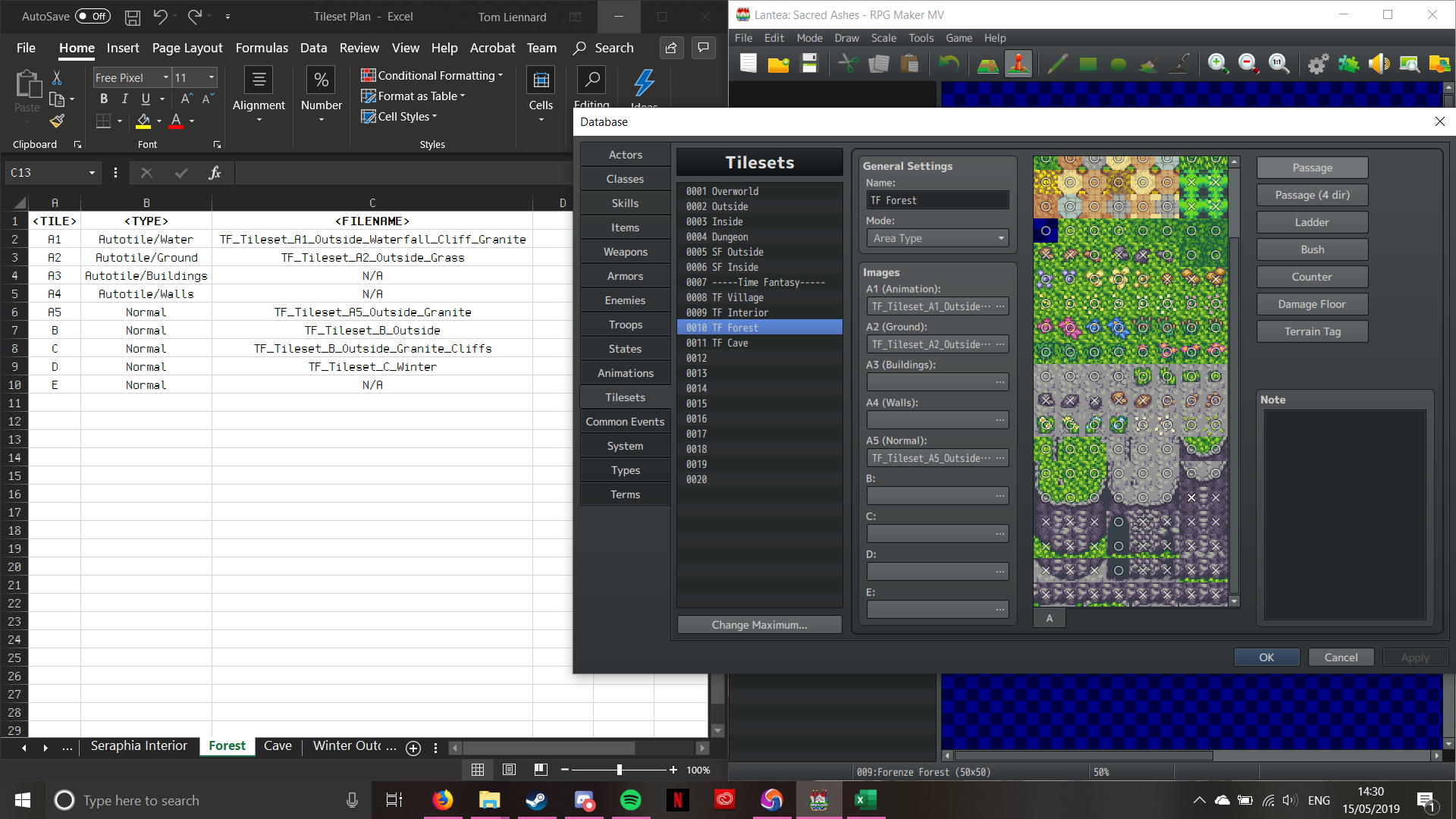
Now that’s done, we can move on to the next section. Now according to the plan, we’re not using the A3 or A4 sections of the tileset. We can do this without it being gamebreaking. Moving onto the A5 tile now then. This ones a little different; it’s not an Autotile. It’s a section of graphics designed to interface with Autotiles, but they aren’t Autotiles themselves. Let’s jump forward through the configuration proccess, as there are no new steps or interesting developments:

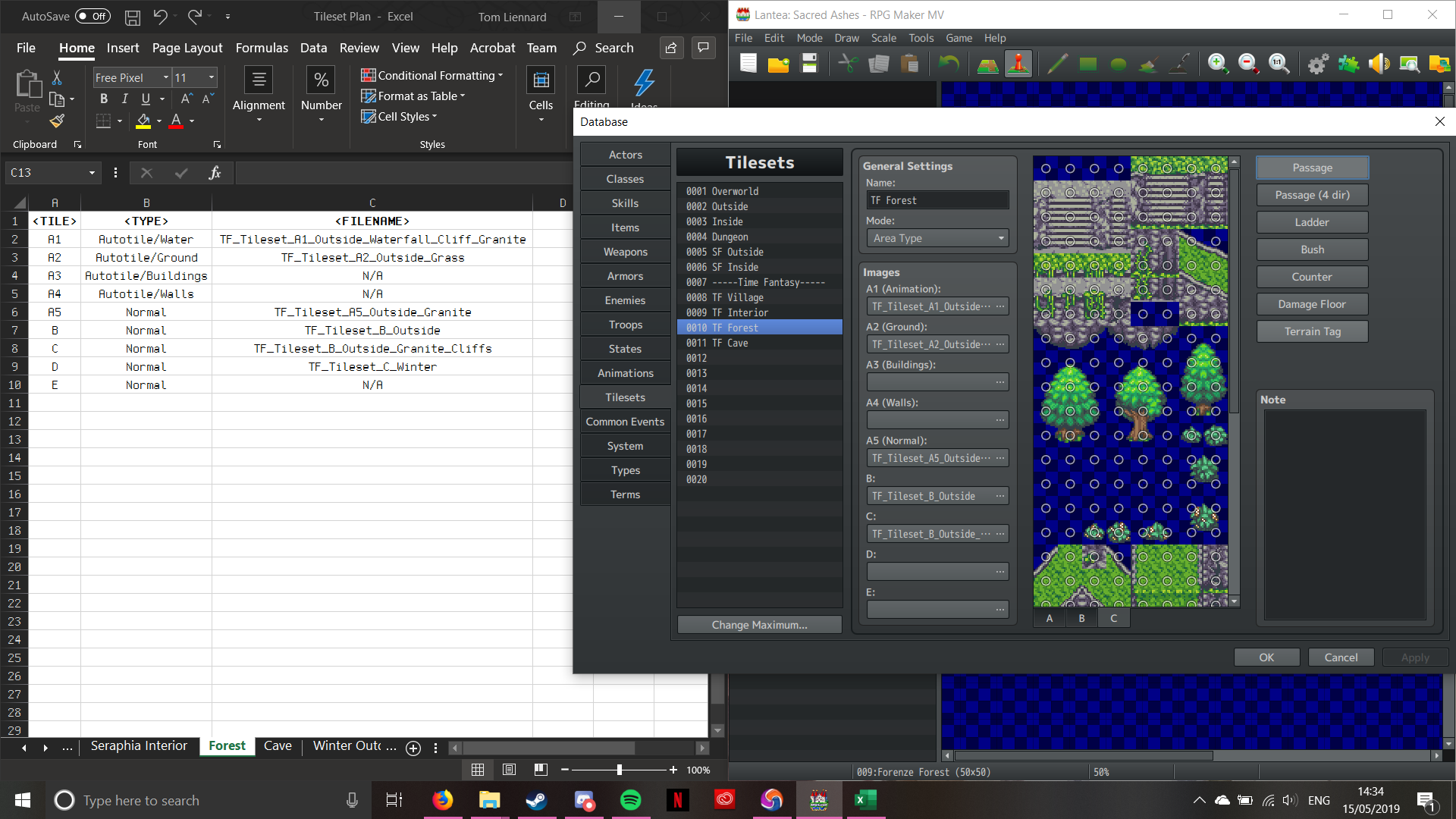
Now onto Tileset B. This one adds a new thing on passability; the ability to walk behind (indicated by a Star). One thing about Tileset B that’s important is that it’s vital to the rest of the tileset. WHATEVER YOU DO, DO NOT REMOVE THE STAR ON THE FIRST TILE!!! That star cntrolls the general passability. If set to Cross, then the player won’t be able to move at all; conversely, setting it to Circle will allow the player to walk on anything, ignoring the noraml passability setting. Leaving it as a star will make the passability work correctly. (A bit odd, isn’t it?). Anyhow, here’s the same process for the B Tileset (don’t forget about the Star passability!):

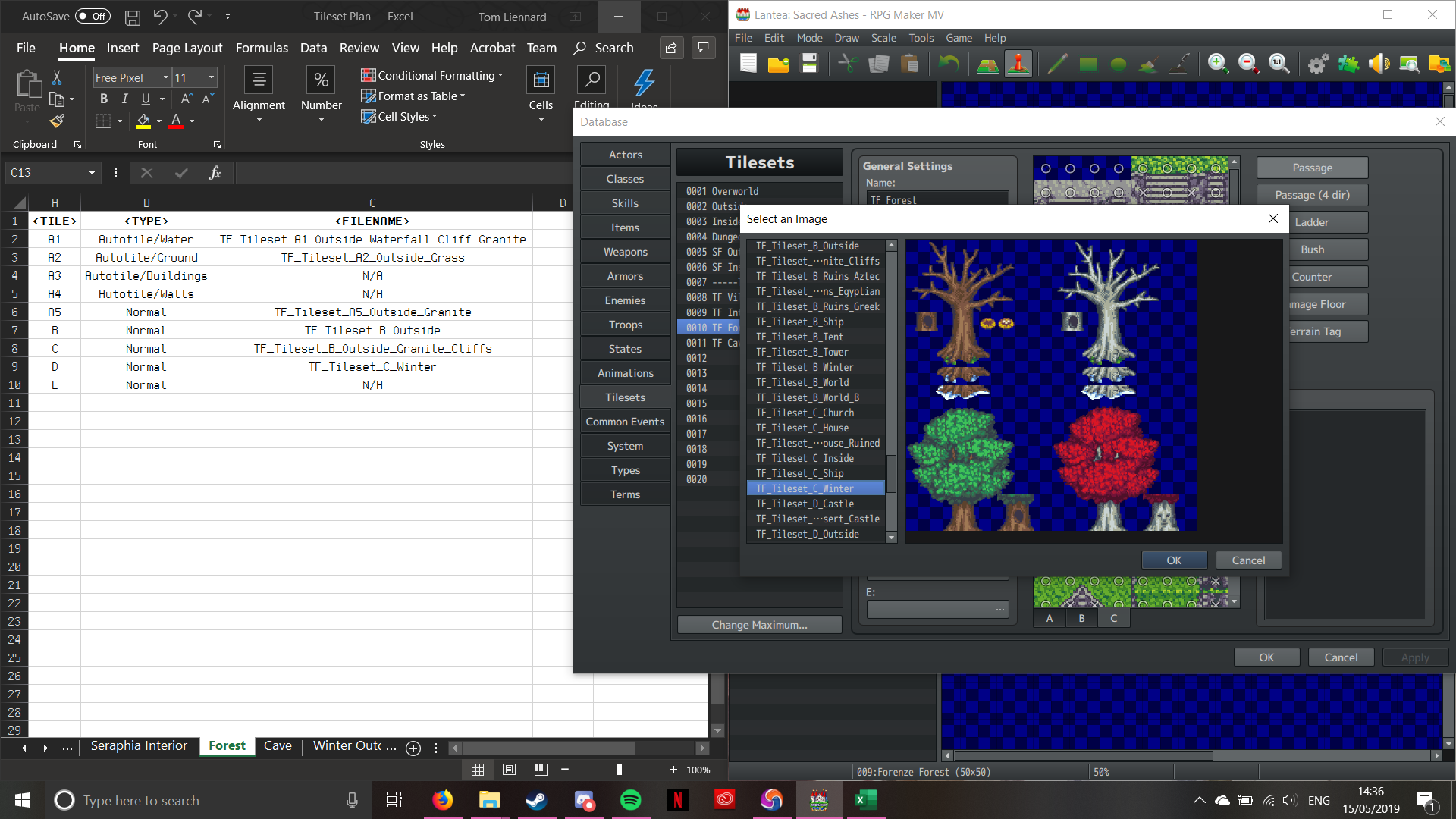
The rest of the tilesets work in the same way, minus the top left Star:

And there we go! One fully pre-planned, configured Tileset ready for use. This is the proccess I have to go through every time I create a new composite Tileset. It doesn’t half hurt your wrist though with all the clicking! The advantage of this tileset system is that you can re-use tilesets across the project, without having to reconfigure it for every single map. The drawback is the time required to properly set it up (as well as the pain from the clicking).

That’s it for now, and I’ll be back soon with some more stuff!